

Markdone
Work through a markdown checklist; ticking an item writes the state back into the file
Screenshots
Markdone
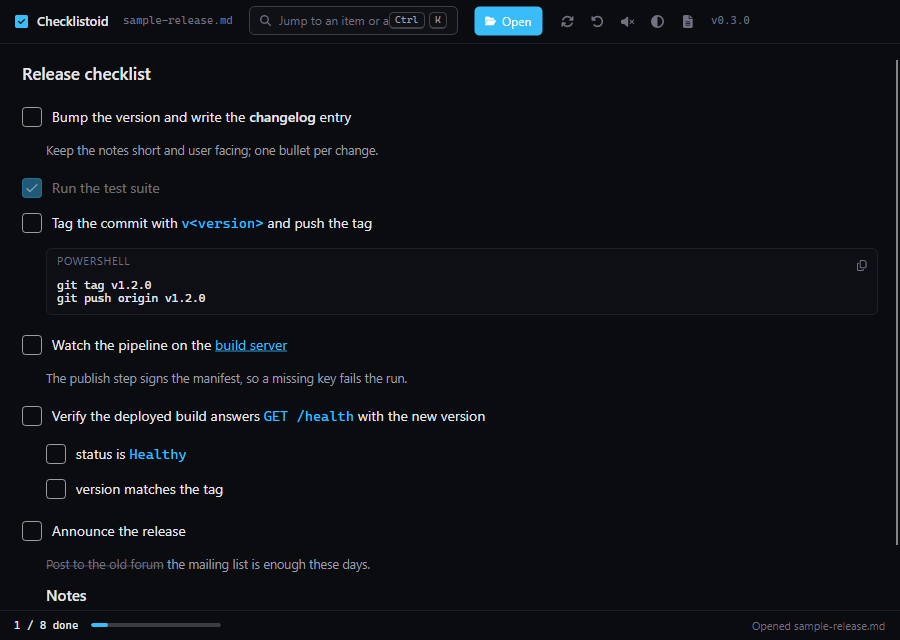
A Windows Markdown reader with a full document view and a checklist mode. Read prose, tables, alerts,
footnotes and code with comfortable typography, or open a .md file with a task list and work through it: the
notes, commands and links that belong to a step stay under it until it is ticked off, and ticking an item
writes the state straight back into the file, so the markdown stays the single source of truth and keeps
working in any editor, in git and on GitHub.
Why
Deployment notes, onboarding steps and release procedures live in markdown files anyway. Reading them in an editor means losing the place, ticking boxes by hand and looking at the code fences of steps that are long done. Markdone renders the same file as a checklist, folds the detail of a finished step away and keeps count of how far the run is.
What it does
Full reading mode. GitHub tables and alerts, task lists, footnotes, heading anchors, definition lists, emoji, safe HTML and YAML metadata. Bundled styles work offline and follow Light / Dark / System live.
Keep your place. Each tab remembers its scroll position across switches and live reloads. Reading zoom is remembered; wide tables and code scroll within their blocks. Code has a copy button.
Local documents stay local. Images resolve beside the file; links to Markdown files open as tabs. External links open in the default browser. Remote images appear as links and raw HTML cannot run scripts.
Every bullet is a checkbox.
- [ ]and- [x]items carry their state in the brackets; a plain bullet can be ticked too and gets the brackets written into its line the first time. Nested lists count as well.Details fold away. A paragraph, a code block, a sub heading or a nested list that follows an item is shown under it until the item is checked; a finished step collapses to a single line.
The file is the state. Ticking an item replaces the one character between the brackets and saves the file immediately - no side-car database, no state that can drift.
Markdown as it reads. Bold, italic, strikethrough, inline code, links and images render inline in a wrapping paragraph; a link opens in the shell, and a relative path is resolved against the checklist. A bare Windows or UNC path in the text (
C:\logs\app.log) is a link too - a runbook is full of them.Code blocks keep their language label and copy to the clipboard with one click.
Command palette (
Ctrl+K): fuzzy search over the items, the recent files and the actions; Enter ticks the selected item, so a whole checklist can be worked through from the keyboard.A log you can read in the app (
Ctrl+L): live events with a filter, the files on disk and a tail view.Agents can send documents over a local MCP server (
show_document,list_documents,get_document), see below.Updates itself from the TomLabs app store and offers the new build in the status bar.
Ops console look: dense dark-first UI with a light theme and a System / Light / Dark switch (System follows Windows live), a sky accent, a custom title bar and the build version in the header, plus a sound when an item is ticked.
Using it
Markdone                # open the window, then Open (Ctrl+O) or pick a recent file
Markdone deploy.md      # open a checklist straight away (in the running window, if there is one)
Markdone --health       # print the health document: status, version, name
| Shortcut | Action |
|---|---|
Ctrl+K |
Command palette: items, recent files, actions |
Ctrl+O |
Open a Markdown document |
F5 |
Reload the file from disk |
Ctrl+L |
Application log |
Ctrl+Shift+L |
Cycle the theme: system → light → dark |
Ctrl+= / Ctrl+- |
Reading zoom / checklist font size |
Ctrl+0 |
Reset reading zoom |
Ctrl+Tab / Ctrl+Shift+Tab |
Next / previous tab |
Ctrl+W |
Close the current tab |
Use the book button in the header or the palette to switch between reading and checklist modes. Reading mode requires the installed Windows WebView2 runtime; Markdone never downloads a runtime itself.
Settings (theme, reading zoom, font size, mode, sound, recent files and open tabs) live in %APPDATA%\Markdone\settings.json;
MARKDONE_DATA_DIR points a run at another folder (and gets its own single-instance guard, so it runs next to the main one).
Agents: the MCP server
Markdone runs a local MCP server (Streamable HTTP) on http://127.0.0.1:5232/mcp for as
long as it is open, so an agent can put a plan, report or runbook in front of you instead of leaving a file to hunt for.
claude mcp add --transport http markdone http://127.0.0.1:5232/mcp
codex mcp add markdone --url http://127.0.0.1:5232/mcp     # or in ~/.codex/config.toml: [mcp_servers.markdone] url = "http://127.0.0.1:5232/mcp"
| Tool | What it does |
|---|---|
show_document |
path (an existing .md / .markdown file, opened where it is) or content (Markdown text up to 5 MB, saved to the inbox), plus optional title, agent, focus (default true: activate the tab and bring the window forward). Every call opens its own tab. Returns { id, path, title }. |
list_documents |
The open tabs and the inbox, each with id, title, source, path and checklist progress done/total. |
get_document |
By id or path: the text and the checklist items as { text, checked, offset, task }. |
There are no tools that edit text or tick items; the checklist stays yours. Unknown fields are rejected with the list of
accepted ones. The server listens on loopback only, refuses any request with an Origin header (so a web page cannot post
to it) and has no token. GET /health on the same port returns { "status", "version", "name": "Markdone" }.
Pushed text lands in %APPDATA%\Markdone\inbox as ordinary .md files and is deleted after 30 days unless pinned.
The port is McpPort in settings.json (default 5232) or the MARKDONE_MCP_PORT environment variable; "McpEnabled": false
switches the server off. When the port is taken the status bar says so ("MCP off - Port 5232 is in use") and Markdone works on without MCP.
Only one Markdone runs per data folder: starting it again (or opening a .md file with it, or dropping files on its
window) opens the files as tabs in the running one.
Building
.NET 10 SDK, Avalonia 11. The self-update library (TomLabs.AutoUpdate.Avalonia) comes from nuget.org.
git clone <repository>
dotnet build TomLabs.Markdone.slnx
dotnet test tests/TomLabs.Markdone.Tests/TomLabs.Markdone.Tests.csproj
dotnet run --project src/TomLabs.Markdone.App
A release build publishes one self-contained exe:
dotnet publish src/TomLabs.Markdone.App -c Release
The icon is generated by tools/icon/icon.cs (dotnet run tools/icon/icon.cs <output folder>), which writes
both icon.png and the application icon.ico.
Repository
src/TomLabs.Markdone.App- the application (Avalonia 11, CommunityToolkit.Mvvm, Markdig).Models/Services- the parsed checklist, the document that writes ticks back, settings.Mcp- the local MCP server (Kestrel, loopback) and its tools;Services/SingleInstance.cs- mutex and pipe, one copy per data folder.Controls/MarkdownPresenter.cs- renders markdown spans as text inlines with clickable links.Controls/ReadingViewport.cs,Services/ReadingRenderer.csandServices/ReadingSanitizer.cs- the offline document viewport and its security boundary.Reading- bundled reading CSS and the page bridge;markdone.highlightis reserved for future highlighting.Styles- design tokens and the shared ops console control styles.
tests/TomLabs.Markdone.Tests- unit tests of the parser and of the document that rewrites the file.tests/ui-fixture- a synthetic checklist and settings used by the scripted UI checks.samples- reading features, typography, links, security probes and a 2 MiB document.tools/icon- the icon generator.
Releases
Every push to master publishes a nightly build to the TomLabs app store, a v* tag a stable one
(azure-pipelines.yml); the application checks for updates itself. Bump VersionPrefix in the csproj
together with a section in CHANGELOG.md.
Changelog
Changelog
0.6.2 — 2026-10-19
Fixed
- Activating the window after opening a document through MCP no longer crashes when WebView2 rejects focus during initialization or a window state transition. Focus is guarded and rejected controller calls are logged as warnings.
- Added regression coverage for opening paths containing
..: MCP responses, tabs and the document folder use the normalized absolute path.
0.6.1 — 2026-10-17
Changed
- The window starts at 1400 × 960, centred and limited to 90% of the current screen's working area, including DPI scaling.
- The title-bar search expands to 360 pixels; narrow windows move the toolbar to a second row to keep its actions accessible.
Added
- A Settings page, available from the toolbar gear and command palette, groups appearance, sound, MCP agents, inbox, updates, logs and the changelog. Preferences apply immediately and are remembered.
- MCP preferences show live status and a copyable Claude connection command; changing the port or enabling/disabling MCP restarts its listener. Invalid ports and inbox retention values show inline errors.
- Incoming document taskbar attention can be switched off in Settings; file logging levels can be changed without restarting.
- Documents received through MCP or a second launch briefly highlight their tab with a sky-accent fade, including background requests and already open files.
- On Windows, incoming documents flash the taskbar button while the window is inactive; activating the window clears the attention indicator. Background MCP requests keep the window inactive.
0.6.0 — 2026-10-16
Added
- Agents (Claude Code, Codex, Gemini) can send documents to Markdone over a local MCP server on
http://127.0.0.1:5232/mcp:show_document(a file path or Markdown text) opens a tab,list_documentsshows the tabs and the inbox with checklist progress,get_documentreturns the text and the checklist items. Nothing can be edited or ticked through MCP. - The server only answers local, non-browser requests; content is limited to 5 MB.
GET /healthon the same port reports the status and version. - The port is set with
McpPortinsettings.jsonorMARKDONE_MCP_PORT, and the server is switched off with"McpEnabled": false. The status bar shows the port, or that MCP is off and why (for example "Port 5232 is in use"); Markdone keeps working without it. - Only one Markdone runs per data folder. Starting it again, double-clicking a
.mdfile or using "Open with" opens the files as tabs in the running window and brings it forward. - Dropping
.mdor.markdownfiles on the window opens them as tabs.
Fixed
- Tabs pushed by agents are reliably remembered while theme or other preferences change; update channel changes preserve the shared settings.
- Starting while another instance is unresponsive or shutting down stops after ten seconds with a visible error instead of waiting forever; updater relaunches get 30 seconds for the old build to exit.
- MCP reads return consistent document text, metadata and checklist state during reloads and ticks.
- Derived inbox titles respect the 200-character limit; fully escaped content up to 5 MB is accepted, and partially qualified paths are rejected.
- Starting during shutdown retains file arguments until handover is acknowledged or the new instance takes over; closing during MCP startup stops the server before disposing documents.
0.5.1 — 2026-10-14
Changed
- Quieter, subtler sounds when ticking items
0.5.0 — 2026-10-14
Added
- A full document reading view with comfortable typography, GitHub tables and alerts, task lists, footnotes, heading anchors, definition lists and emoji.
- YAML metadata appears in a compact table; local images and Markdown links resolve beside the document. Remote images appear as links.
- Copy buttons on code blocks, remembered reading zoom (Ctrl+= / Ctrl+- / Ctrl+0), and reading position kept per tab and across live reloads.
- The reading page follows Light, Dark and System live. A header button and palette action switch between reading and checklist modes.
Fixed
- Stale reading checkboxes are refused after a document reload; rapid tab switches keep the correct page and scroll position.
- Malformed links no longer interrupt reading, footnote tasks appear disabled, and theme or zoom updates preserve code examples.
- Abandoned reading session files are cleaned up on the next start; Ctrl+0 only resets zoom in reading mode.
- Untrusted HTML cannot run scripts or handlers, navigate the viewport, submit forms or download remote resources. External links open in the default browser.
- The command palette opens in its own popup above the document, with a shorter header prompt that fits at 900 px.
- Returning to a tab keeps the current checkbox state; tasks in blockquotes also write back to the Markdown file.
0.4.0 — 2026-10-14
Added
- Several documents open at once, each in its own tab with its progress; Ctrl+Tab / Ctrl+Shift+Tab switch, Ctrl+W closes.
- The tabs of the last session come back at start-up.
- An open file that changes on disk is reloaded by itself; a tick on an item that moved meanwhile is not saved and the status bar says so.
- Checklists pushed by agents land in an inbox and open as tabs with a robot icon; unpinned ones are cleaned up after 30 days.
Changed
- The app now ships an application manifest and the WebView2 packages, groundwork for the rendered document view.
- The window opens about twice as fast (≈ 0.7 s instead of 1.3 s): updates, automation and the last session load after it is shown.
0.3.2 — 2026-09-24
Changed
- The self-update library comes from nuget.org (TomLabs.AutoUpdate 0.3.2) instead of a git submodule; updates work as before.
0.3.1 — 2026-09-24
Changed
- The theme switch now has a System option that follows Windows live; earlier Light/Dark choices were reset to System once.
Added
- The header button shows the current mode (half circle = System, sun, moon) and
Ctrl+Shift+Lcycles System → Light → Dark; the command palette can set each mode directly.
0.3.0 — 2026-09-22
Everything a checklist for a machine needs, plus the housekeeping every application here has.
Added
- Command palette (
Ctrl+K): fuzzy search over the items of the open checklist - Enter ticks or unticks one - plus the recent files and every action, so a checklist can be worked through without the mouse. - Application log: daily rolling files in
%LOCALAPPDATA%\Markdone\logsand a Logs page (Ctrl+L) with the live events, a level and text filter, the files on disk and a tail view. - Self-update through the shared TomLabs.AutoUpdate library: the build checks the TomLabs app store and offers the new version in a banner in the status bar; the channel can be switched from the palette.
- A bare Windows or UNC path written in an item (
C:\logs\app.log,\\build\drops\app.zip) is a link again and opens in the shell, the way the first version of the application did it.
Changed
- Every bullet can be ticked again, not only
- [ ]items. The first tick writes the brackets into the line, so the state of a plain bullet ends up in the markdown file like everyone else's. - A tick that cannot be written to the file now says so in the status bar instead of being lost silently.
0.2.0 — 2026-09-22
The proof of concept from 2020 turned into a working application.
Added
- Open any markdown file with a task list (
Ctrl+O, a path on the command line, or a recent file from the start screen);F5reloads it from disk. - Ticking an item writes
- [x]back into the source file straight away, so the markdown file is the state. - Nested task lists, code blocks with a language label and a copy button, sub headings and note paragraphs under an item; the detail of a step folds away once it is ticked.
- Progress (
3 / 12 done) and the last action in the status bar. - Light and dark theme (
Ctrl+Shift+L), font size (Ctrl+ +/Ctrl+ -) and the sound on ticking can be switched from the header; all of it is remembered between runs. Markdone --healthprints the health document (status, version, name).
Changed
- Runs on .NET 10 and Avalonia 11 with the shared ops console look, a custom title bar and the build version in the header.
- Markdown is parsed with Markdig, which understands real task lists, instead of the archived Microsoft.Toolkit parser and its hand-written bracket stripping.
- A checklist line is rendered as one wrapping paragraph of text inlines instead of one box per word, so long items wrap properly and links stay clickable.
- New application icon and a repository laid out like the other personal applications (
src/,.slnx).
Fixed
- The checklist no longer comes from a path hard-coded into the view model.
- Sounds play through the system player as WAV assets, so the app no longer depends on NAudio.